
How It Works
Complete guide to transferring files between your devices using WebDrop
Open WebDrop on your computer
Scan QR code with your phone
Start transferring instantly
Step-by-Step Guide
Create a Transfer Session
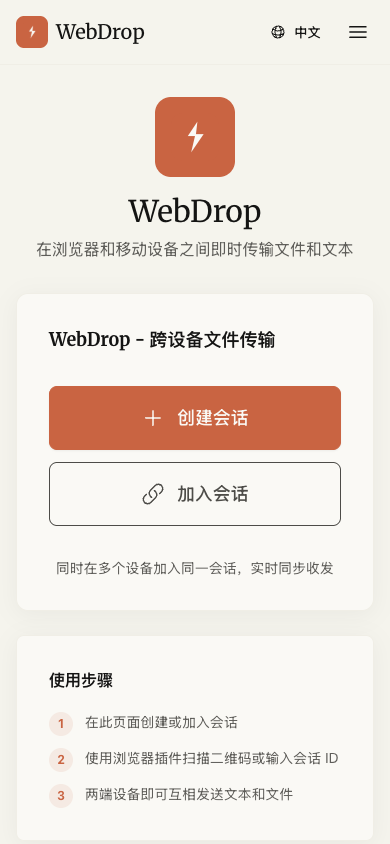
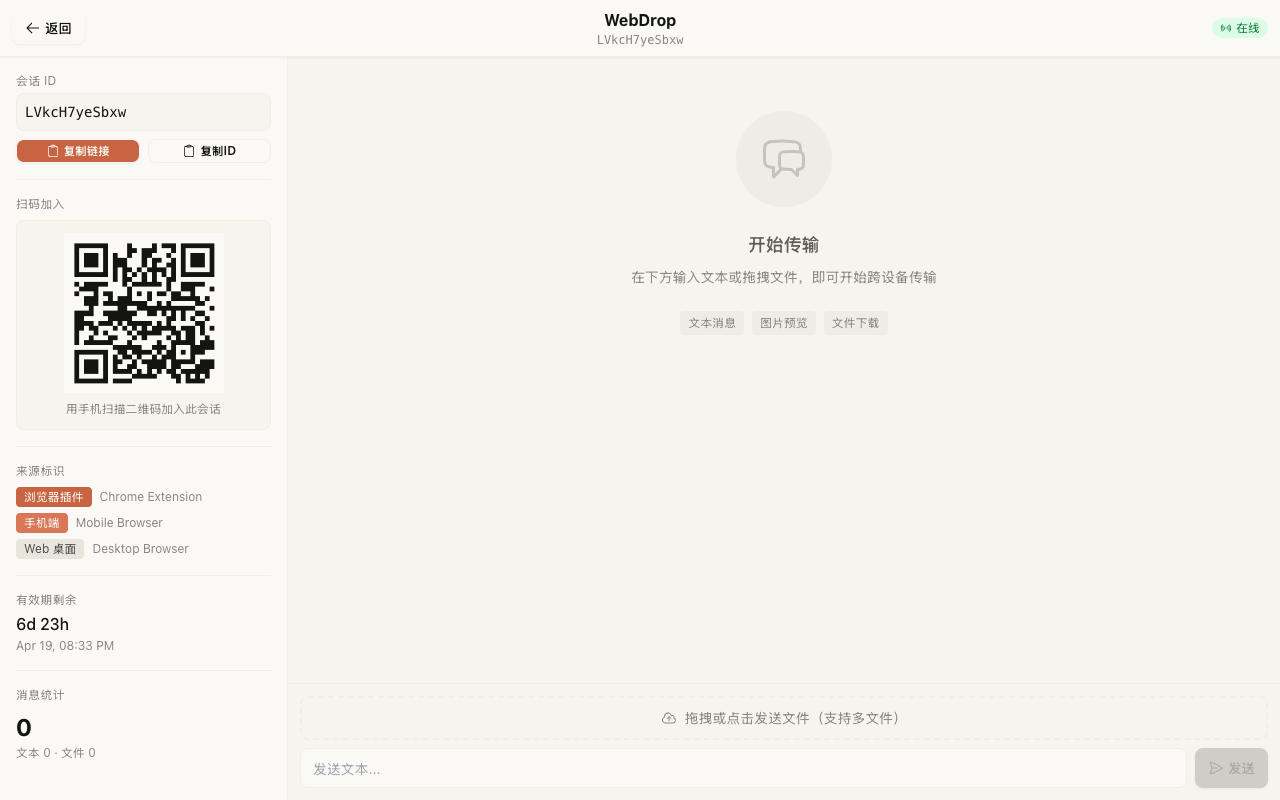
Open WebDrop in your browser and create a new transfer session. This generates a unique QR code for your connection.
- Visit webdrop0.com or open the Chrome extension
- Click 'Start Transfer' to create a new session
- A unique QR code and session ID will be displayed
Connect Your Mobile Device
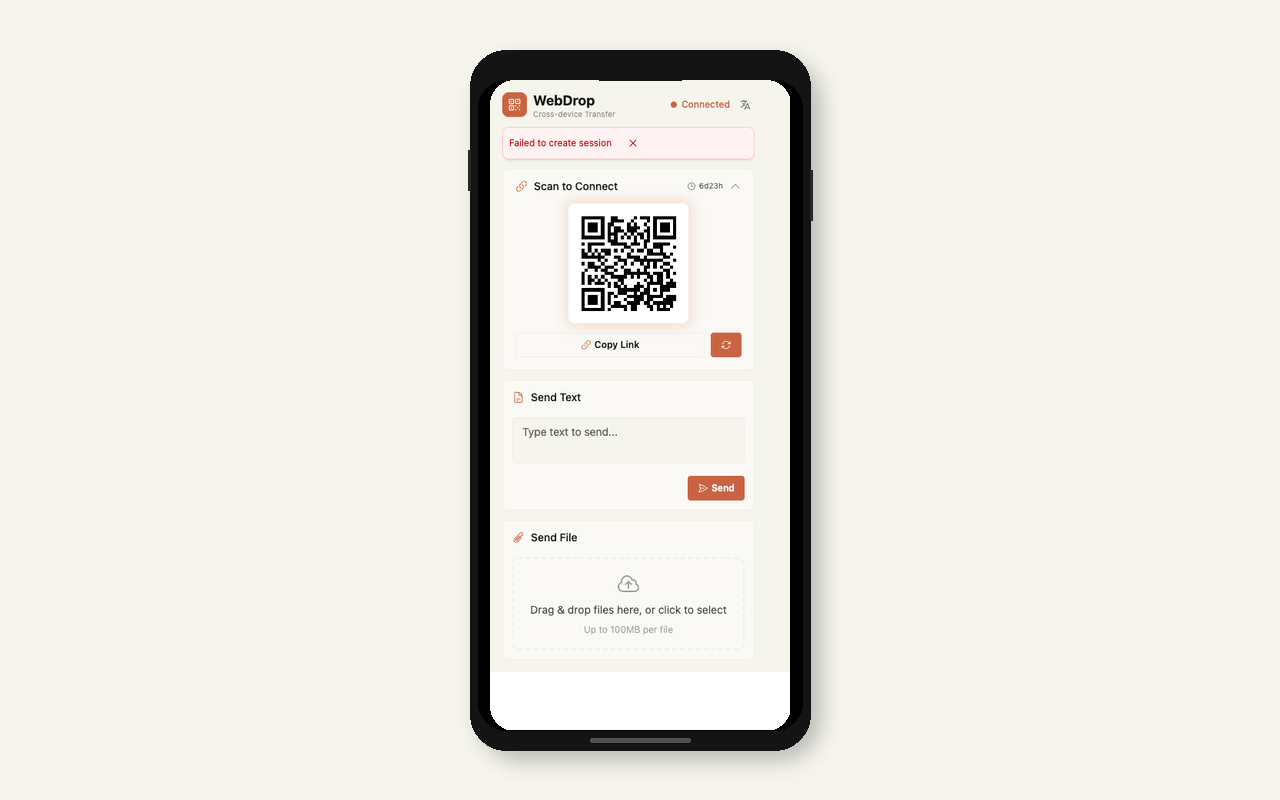
Use your phone's camera or QR scanner to scan the code and establish a secure connection.
- Open your phone's camera app
- Point it at the QR code on your computer screen
- Tap the notification to open the transfer page
Send Files & Text
Once connected, you can instantly send files and text between devices. No cables needed!
- Drag and drop files or type text on either device
- Files up to 500MB transfer instantly
- Text syncs in real-time across all connected devices
Video Tutorial
Learn how to use WebDrop in 66 seconds
Common Use Cases
Discover how WebDrop can help you in everyday scenarios
Work Documents
Quickly send documents from your work computer to personal phone
Photo Sharing
Transfer photos from phone to computer for editing or backup
Quick Notes
Copy text on one device, paste on another instantly
Pro Tips
Stay Connected
Keep the browser tab open during transfer for best performance. Closing the tab won't disconnect immediately, but may affect large file transfers.
Multiple Devices
You can connect multiple phones or tablets to the same session. Perfect for sharing with family or team members.
Session Duration
Sessions last 7 days. Download important files promptly. You can always create a new session if needed.
Manual Entry
If QR scanning fails, you can manually enter the 6-digit session ID on your mobile device.
Troubleshooting
QR code won't scan
Make sure your camera lens is clean and you're in a well-lit area. Try moving closer to the screen or increase screen brightness. You can also manually enter the session ID.
Connection lost during transfer
Check your internet connection on both devices. WebDrop requires both devices to be online. For large files, keep the browser tab active until transfer completes.
Files not appearing on receiving device
Refresh the page on the receiving device. Make sure you're connected to the same session. Files may take a moment to appear depending on size and network speed.
Frequently Asked Questions
Ready to Try WebDrop?
Start transferring files between your devices in seconds. No signup, no installation required.